If JW Library is not working on your Android phone, the fastest fixes are usually clearing the app's cache, updating both the app and Android system WebView, and confirming you have enough free storage. Most problems (crashes on open, blank screens, downloads that stall, or videos that won't play) trace back to one of those three things. Below I walk through each symptom and what to try, roughly in the order that solves the most cases first, so you can get back to reading and studying without guessing.
Why the app stops working in the first place
JW Library leans on a few parts of your phone that are easy to overlook. It stores a large amount of content locally: Bibles, publications, media, and study material. When the app misbehaves, it is often because the local data got corrupted, the app version is out of date, or the phone ran low on space while downloading.
Android itself plays a role too. The app uses Android System WebView to render certain screens and articles. If that component is outdated or was disabled, you can get blank pages or a stubborn white screen even though the rest of the app looks fine. That single dependency causes more headaches than most people expect, and it is worth checking early.
Network conditions matter for anything involving downloads or streaming. A weak connection, a captive Wi-Fi login page, or a VPN routing traffic oddly can all make the app seem broken when the real issue is the pipe carrying the data.
App crashes or closes the moment you open it
A crash on launch is the most common complaint, and it usually points to corrupted cache or a bad update. Start with the cache since it is quick and non destructive.
Clear the cache, then the data if needed
Open your phone's Settings, go to Apps, find JW Library, tap Storage, then Clear cache. Reopen the app and see if it holds. Clearing cache does not delete your notes, bookmarks, or downloaded publications, so there is no real downside to trying it first.
If that does not help, the next step is Clear storage (sometimes labeled Clear data). Be aware this is heavier: it resets the app to a fresh install state, so you may need to re download publications and sign back in. Your notes sync to your account if you set that up, but confirm they are backed up before wiping data. I would treat Clear data as a second resort, not a first move.
Force stop and restart
Sometimes the app gets stuck in a bad state in memory. Force stop it from the same Apps screen, then restart your phone entirely. A reboot clears out lingering processes and, honestly, resolves more Android app glitches than it has any right to.
The screen is blank, white, or missing text
When the app opens but content areas are empty, the culprit is almost always Android System WebView or a browser component the app relies on.
Update or re enable Android System WebView
Go to the Google Play Store, search for Android System WebView, and update it if an update is available. On some phones this component ships as Google Chrome instead, so update Chrome as well. After updating, restart JW Library. If WebView was disabled at some point, re enable it from Settings, Apps, then the menu that shows system apps.
Check your date and time settings
A wrong system clock breaks the secure connections the app needs to load content, which can show up as blank screens or failed loads. Set your date and time to automatic in Settings so they match your network. It sounds trivial, but an incorrect clock quietly breaks a surprising number of apps.
JW Library app not downloading or updating
If the jw library app is not downloading from the Play Store, or an update refuses to install, the problem sits with Google Play or your storage rather than the app itself.
Clear the Play Store cache and check storage
Downloads that stall at 0 percent or throw an error code often clear up after you wipe the Google Play Store cache. Settings, Apps, Google Play Store, Storage, Clear cache. While you are there, check free space on your device. JW Library and its media can occupy several gigabytes, and Android will silently fail downloads when space runs short. Free up room by removing unused apps or large files, then retry.
Confirm the app is compatible with your device
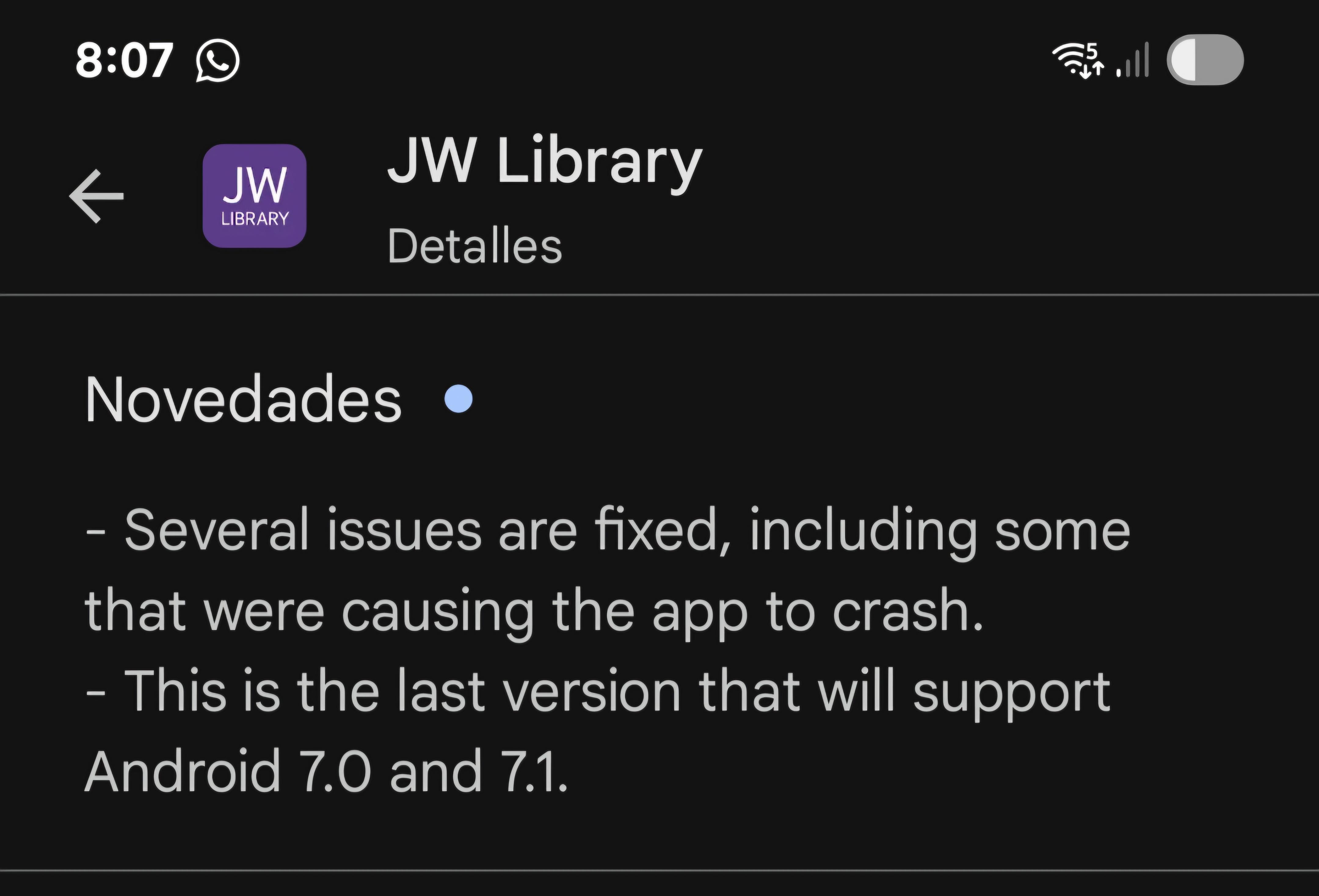
The jw library app for android requires a reasonably current Android version. Very old phones may no longer receive the latest release, which can leave you stuck on an outdated version that crashes against newer content. Check your Android version in Settings, About phone, and compare it against what the Play Store listing requires. If your device is too old, that is a hard limit rather than a bug you can fix.
Try a manual reinstall
Uninstall JW Library completely, restart the phone, then install it fresh from the Play Store. A clean install sidesteps whatever partial or corrupted files were blocking the update. Sign in afterward to pull your synced notes and bookmarks back.
Media, audio, or video won't play
Playback failures usually come down to connection quality or a download that never finished. Switch between Wi-Fi and mobile data to see if one works better. If you are on Wi-Fi with a login portal (common in hotels, libraries, and cafes), open a browser first to complete that login, then return to the app.
For content you meant to use offline, open the media manager inside the app and confirm the file downloaded fully. A partial download plays as a broken or silent file. Delete it and download again on a stable connection.
If you use a VPN, disable it temporarily. Some VPN servers interfere with the streaming servers the app talks to, and turning it off is a fast way to rule that out.
Login and sync problems
Trouble signing in or notes that refuse to sync point at either your account credentials or the same date and time issue mentioned earlier. Double check you are entering the correct account details, confirm your internet connection is live by loading any website, and verify the system clock is accurate. If sync stalls, toggling airplane mode on and off resets the network stack and often nudges it back to life.
When nothing above works
If you have cleared cache and data, updated WebView, reinstalled the app, and confirmed storage and connection, and it still fails, the issue may be a specific device or Android build quirk. In that case, note your exact phone model, Android version, and app version, then look for others reporting the same combination. For step by step walkthroughs, community fixes, and version specific notes, the guides collected at the JW Library app help blog are a practical next stop when the standard troubleshooting steps run out, since they tie the download, playback, and crash problems together and often flag which app version introduced or fixed a given bug.
FAQ
Why does JW Library keep crashing on my Android phone?
The usual causes are corrupted cache, an outdated app version, or low storage. Clear the app cache from Settings, then update JW Library and restart your phone. If it still crashes, clear the app data as a last resort and sign back in.
Why is the JW Library app not downloading from the Play Store?
Downloads commonly fail because of a full Google Play Store cache or insufficient device storage. Clear the Play Store cache, free up several gigabytes of space, and retry. Also confirm your Android version meets the app's minimum requirement.
How do I fix a blank white screen in JW Library?
A blank screen almost always means Android System WebView is outdated or disabled. Update Android System WebView and Chrome from the Play Store, re enable WebView if it was turned off, and check that your date and time are set to automatic.
Will clearing app data delete my notes and bookmarks?
Clearing data resets the app and removes locally stored content, so you will need to re download publications. Your notes and bookmarks are safe if they sync to your account, so confirm sync is set up before you clear data.
Why won't videos play in JW Library even when the app opens fine?
Playback issues usually come from a weak connection, an incomplete download, or a VPN interfering with the stream. Switch between Wi-Fi and mobile data, redownload any partial media files, and disable your VPN to see if playback recovers.
Getting back to a working app
Work through the fixes in order: cache first, then updates to the app and WebView, then storage and a clean reinstall if needed. Most people land on a solution within the first two or three steps, and the blank screen problem in particular clears up once WebView is current. If you hit a wall, jot down your phone model and app version before searching for others with the same setup, since that detail is what turns a vague crash into a fixable one.
Tried a different approach to jw library not working android? We would like to hear how you handled it, it might help another reader in a slightly different situation.


