When JW Library says the restore backup failed, the usual causes are a corrupted backup file, a version mismatch between the app and the file, or restoring from the wrong location like a cloud folder that never finished syncing. The quick fix for most people is to re-download the backup file fully, update JW Library to the current version, and restore from local device storage rather than straight from a cloud link. If your notes, highlights, and bookmarks matter to you, it is worth slowing down and checking each of these before you assume the file is dead.
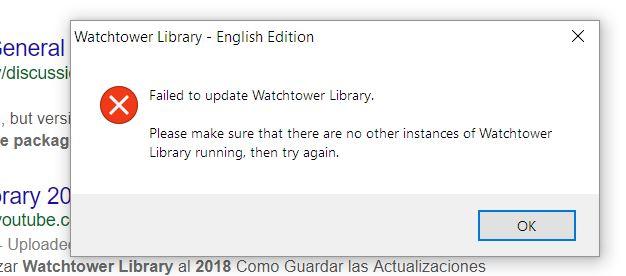
I have seen this error trip up people who did everything right, so this is not always a sign you messed up. Sometimes a backup that restored fine last month refuses today because the app updated its internal database structure. Below I walk through what the error actually means, the specific reasons it appears, and the order I would try fixes in.
What the restore backup failed message really means
JW Library backups are single files with a .jwlibrary extension. Inside that file is a compressed package containing a database of your personal data: notes, highlights, bookmarks, input fields, and playlists. When you restore, the app unpacks that database and merges it into the copy currently on your device. The restore failed message means the app started that unpacking process and hit something it could not read or reconcile.
That is a useful distinction. The app is not saying "I can't find your file." It is saying "I found the file, I opened it, and something inside broke the process." So the problem is usually the file's contents, the app's ability to read that version of the contents, or a permissions issue that stops the app from writing the restored data back to your device.
The most common triggers
An incomplete download is the number one culprit in my experience. If you saved the backup to Google Drive, iCloud, or Dropbox and you tap it before the file has fully downloaded to your device, the app receives a partial file and chokes on it. The file size looks close enough that you assume it is complete, but a few missing kilobytes are enough to fail the restore.
Version mismatch is the second big one. A backup created on a newer version of JW Library can contain database fields that an older app version does not understand. The reverse can also cause trouble on rare occasions. This is why the app and the backup file should be on compatible versions before you try.
Storage permissions matter too, especially on Android. If JW Library does not have permission to read from the folder where the file sits, or write to its own data location, the restore stops. A nearly full device is a related problem: restoring temporarily needs free space to unpack the database, and a phone with almost no room left will fail silently or with a vague error.
Then there is genuine file corruption. If the backup was created on a device that was low on space, or the file got truncated during a transfer over a flaky connection, the internal database can be damaged in a way no amount of retrying will fix.
Step by step fixes to try in order
Start with the cheapest fix and work toward the more involved ones. There is no reason to reinstall the app if a fresh download of the backup solves it in thirty seconds.
First, close JW Library completely and reopen it. Not minimizing, fully closing it from the recent apps list. A stuck background state occasionally causes a restore to fail on the first attempt and succeed on the second.
Second, if your backup lives in the cloud, download it to local device storage before restoring. On a phone this means saving the .jwlibrary file to your Downloads folder or Files app first, waiting for it to finish, then pointing JW Library at that local copy. Restoring directly from a cloud preview is where a lot of partial-file failures happen.
Third, update JW Library to the latest version from your app store. Then update it on the device that created the backup too, if you still have access to it, and make a fresh backup. Matching versions removes the mismatch problem entirely.
Fourth, check your free storage. As a rough guide, make sure you have at least double the backup file's size available. A 500 MB backup wants a gigabyte of breathing room to unpack cleanly. Clear some space and try again.
Fifth, on Android, check that JW Library has storage permissions in your system settings under apps. On iOS, make sure the app has access to the location where you stored the file.
If none of that works, the file itself may be corrupt. Before you give up on it, try restoring it on a different device. Sometimes a backup fails on one phone because of that phone's specific state, not because the file is broken. A tablet or a friend's device with JW Library installed can confirm whether the file is genuinely damaged.
When the backup is genuinely corrupt
If the file fails everywhere, on every device, honesty time: it may be unrecoverable through normal means. JW Library does not ship a repair tool for damaged backups. What you can sometimes do is check whether you have an older backup that still works, even if it is missing your most recent notes. Losing two weeks of highlights beats losing everything.
This is the moment people wish they had kept more than one backup. Which brings up the thing worth doing right now, before you are in a crisis.
How to back up JW Library the right way
The best defense against a failed restore is a good backup habit. To back up the JW Library app, open the app, go into the settings menu, find the backup option, and create a backup file. On phones and tablets the app will ask where to save it, and this is where your future self will thank you.
Save backups to more than one place. Keep one on the device and push a copy to a cloud service. If a cloud copy is your only backup and it corrupts, you have nothing. Two independent copies means a single bad file does not end your data.
Name your backups with dates. A folder full of files called backup.jwlibrary tells you nothing about which is newest or which was made before a big study session. Something like jwlibrary-2025-01-15 lets you pick the right one instantly and lets you keep several generations without confusion.
Make a backup before you update the app or switch phones, not after. The moments when data goes missing are transitions, and a backup made just before a transition is the one you will reach for.
Understanding the JW Library backup merge
Restoring is not a clean overwrite, and this surprises people. A JW Library backup merge means the app combines the data in the backup file with the data already on your device rather than wiping the device first. If you have notes on your phone and you restore an older backup, you generally keep both sets rather than losing the newer phone notes.
That merge behavior is mostly a good thing, but it has consequences. If you restore the same backup twice, you can end up with duplicate notes and highlights. And if you are moving to a fresh install, the merge does not matter because there is nothing to merge with, so you get a clean restore. Knowing this helps you predict what your library will look like after a restore, which reduces the panic when something looks slightly off.
Preventing the problem from coming back
Once you have a working restore, build a small routine so you never hit this wall again. Make a backup on a regular schedule that matches how much you would hate to lose. Weekly is reasonable for active users. Keep the last three or four backups rather than overwriting a single file, so a bad one does not take out your whole history. Verify occasionally by doing a test restore on a spare device or a fresh install, because a backup you have never tested is a backup you are only hoping works.
For deeper walkthroughs, troubleshooting threads, and version-specific notes that go beyond what fits here, the community writeups at the JW Library app blog are a practical companion to this guide, since a failed restore, a solid backup routine, and understanding the merge behavior are really three parts of the same workflow: getting your personal study data safely from one device or one app version to the next without losing it along the way.
FAQ
Why does JW Library say my backup failed even though the file is there?
The app can see the file but cannot read its contents. This usually means the file downloaded only partially from the cloud, the backup was made on a different app version, or the file is corrupt. Download the file fully to local storage, update the app, and try again.
Can I recover a corrupt JW Library backup file?
There is no official repair tool for damaged .jwlibrary files. Your best options are trying the restore on a different device in case the problem is device-specific, or falling back to an older backup that still opens. This is why keeping several dated backups is worth the small effort.
Will restoring a backup delete the notes already on my device?
No. JW Library merges the backup into your existing data rather than wiping it first. You generally keep both sets of notes, though restoring the same backup more than once can create duplicates.
How much free space do I need to restore a backup?
As a rough rule, keep at least double the backup file's size free on your device. The app needs room to unpack the database during the restore, and a nearly full device is a common cause of a failed or stalled restore.
Should I restore straight from Google Drive or iCloud?
It is safer to download the file to your device's local storage first, confirm it finished downloading, then restore from that local copy. Restoring directly from a cloud location is where most partial-file failures happen.
Getting your data back safely
If you take one thing from this, restore from a fully downloaded local file on an updated app with enough free space, and the majority of failed restores clear up right there. If the file still fails on every device, reach for an older backup rather than fighting a corrupt one. Then set up the dated, multi-location backup habit described above so the next phone switch or app update is a non-event instead of a scare.
Tried a different approach to jw library restore backup failed? We would like to hear how you handled it, it might help another reader in a slightly different situation.


