If your JW Library highlights disappeared, the most common cause is a sync or backup mismatch between your device and your account, not a permanent deletion. In most cases the color markings are still tied to your data and can be restored by forcing a fresh sync, restoring a backup file, or reinstalling the app while signed in to the same account. Below I walk through why highlights vanish, what to check first, and the steps that usually bring them back.
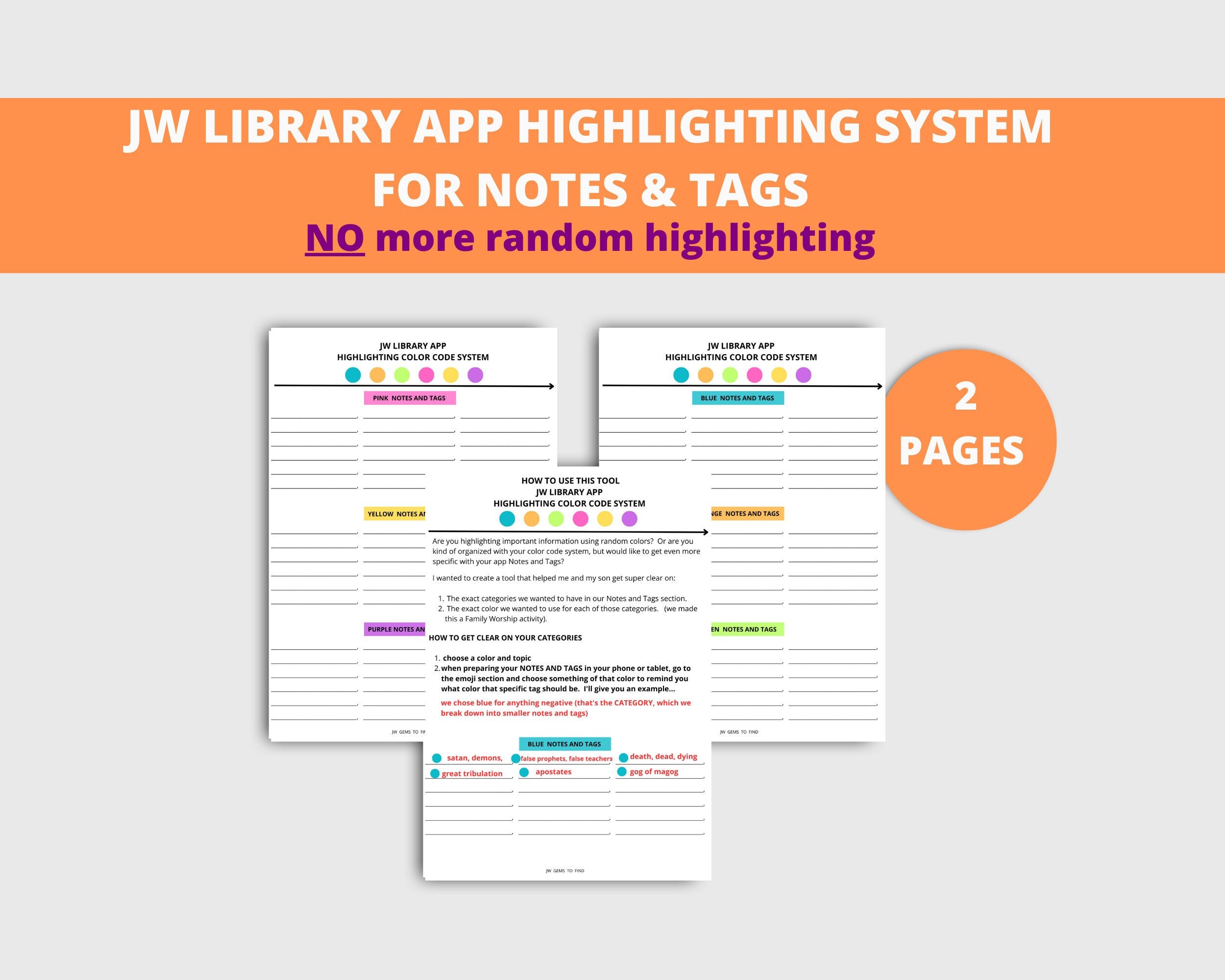
Highlights are one of those features you barely think about until they are gone. You underline a verse during a study, add a note next to a paragraph, and expect it all to be there next week. When you open the app and the page is suddenly blank, it feels like weeks of work evaporated. The good news is that highlights are stored as personal study data, and that data is more resilient than it looks.
Why JW Library highlights disappear in the first place
There are a handful of reasons this happens, and knowing which one applies to you saves a lot of guesswork. The single biggest trigger is an app update. When a new version installs, especially a major one, the app sometimes needs to rebuild its local database. If that process is interrupted or the app closes mid-update, your highlights can stop showing even though the underlying records are intact.
The second common cause is a sync conflict. JW Library can sync your personal study data across devices when you are signed in with a JW.org account. If two devices push conflicting changes, or if a device syncs while offline data is stale, one set of highlights can get overwritten by an older, emptier state. This is frustrating because the app is doing exactly what it was told, just with the wrong version of your data.
A third cause is account or sign-in trouble. If you were signed in and then got signed out, or if you accidentally created a second account, the app shows the highlights attached to whatever account is currently active. Your original markings are sitting in the other account, waiting.
Finally, storage problems on the device itself can wipe local data. A phone running critically low on space, an aggressive cleaning app, or a corrupted app cache can all clear out the local copy of your study content.
Highlights versus notes versus bookmarks
It helps to know that JW Library treats several kinds of personal data separately, even though they all feel like "my stuff." Highlights are the colored markings on verses and paragraphs. Notes are the text you write yourself. Bookmarks and playlists are their own categories too. Sometimes only highlights vanish while notes stay put, which points strongly to a database rebuild issue rather than a full data loss. If everything is gone at once, that is more likely an account or backup problem.
First things to check before you panic
Do not delete or reinstall anything yet. Rushing to reinstall is the fastest way to turn a recoverable problem into a permanent one, because a reinstall can push an empty local state up to the sync server. Start with the calm, reversible checks.
Confirm which account you are signed in to. Open the app settings and look at the account name or email. If it is blank or shows an account you do not recognize, sign out carefully and sign back in with your usual credentials. Give the app a minute to sync after signing in, since highlights often reappear on their own once the correct account data downloads.
Next, force a manual sync if the option exists in your version. Pull down to refresh or use the sync button in settings. Watch for a spinning indicator and let it finish completely before switching screens. A partial sync can leave you worse off than before.
Check your available storage. On both Android and iOS you can see how much free space you have in the device settings. If you are under a gigabyte or so, clear some room and then reopen JW Library. A cramped device can prevent the app from loading its full database.
Restarting the app the right way
Closing and reopening the app is not the same as force-stopping it. On Android, go to the app info screen and choose force stop, then reopen. On iOS, swipe the app fully out of the recent apps view before launching it again. This clears any stuck process that might be blocking the highlight layer from rendering. I have seen highlights come straight back from this step alone, especially right after an update.
How to restore highlights from a backup
JW Library lets you create backup files of your personal study data, and if you made one, this is your safest recovery path. The backup includes highlights, notes, bookmarks, and playlists bundled into a single file.
Open the app menu and look for a backup or personal study section. If you have an existing backup file saved to your device, cloud storage, or a shared drive, choose the restore option and select that file. Restoring overwrites the current study data with whatever was in the backup, so pick the most recent file you trust to contain your highlights.
If you never made a manual backup, check whether your phone's system backup captured the app. Android's Google backup and Apple's iCloud sometimes retain app data. Restoring a full device backup from before the highlights vanished can bring them back, though this is a heavier step that affects other apps too, so weigh it carefully.
The lesson most people learn the hard way here is to make a backup file after any significant study session. It takes under a minute and it is the one thing that makes highlight loss a non-event.
Dealing with problems after an update
Update-related loss deserves its own attention because it is so common. After the JW Library latest update lands, the app occasionally needs several minutes to migrate old data into a new format. If your highlights are missing immediately after updating, the cleanest move is to leave the app open on a Bible page with a working internet connection and simply wait. The migration and sync can catch up in the background.
Looking ahead, the same advice holds for the JW Library update 2026 cycle and any future release. Before you tap update, and while you are on stable Wi-Fi, make a backup. After the update installs, sign in check, sync check, and only then reinstall if things still look wrong. Reinstalling should be your last resort, and even then only while signed in to the correct account so the server can repopulate your data rather than the empty device pushing over it.
If you want to keep up with version changes, known issues, and community workarounds between official releases, a good habit is bookmarking a reference site alongside your backup routine. For ongoing tips on syncing, restoring study data, and troubleshooting quirks that show up after each release, the JW Library app blog is a practical companion to this guide, since the highlight problem, the backup workflow, and update behavior are really three parts of the same maintenance habit rather than separate issues.
FAQ
Are my JW Library highlights gone forever if they disappeared?
Usually not. Highlights are stored as personal study data tied to your account and local database, and most disappearances trace back to a sync conflict, a wrong account, or an interrupted update rather than true deletion. Try a manual sync, verify your account, and restart the app before assuming anything is permanently lost.
Why did only my highlights vanish but my notes are still there?
That pattern almost always points to a database rebuild after an app update rather than a full data loss. The app stores highlights, notes, and bookmarks in separate places, so one can fail to render while the others stay visible. Force-stopping and reopening the app, or waiting for a post-update sync to finish, often brings the highlights back.
Will reinstalling JW Library fix or worsen missing highlights?
It can go either way, so treat it as a last step. If your local data is already empty and you reinstall, the empty state can sync up to the server and overwrite good data. Only reinstall while signed in to the correct account, and ideally after you have a backup file saved somewhere safe.
How do I make a backup so this does not happen again?
Open the app menu, find the backup or personal study section, and create a backup file, then save it to cloud storage or a shared drive. Do this after any long study session and always before installing an update. Restoring from that file later is the fastest, most reliable way to recover highlights.
Does signing in on a second device cause highlights to disappear?
It can if there is a sync conflict, where one device pushes an older or emptier state that overwrites newer highlights. Keep your devices on the same account, let each one finish syncing before you switch, and avoid editing highlights on two devices at the same time while offline.
Getting your highlights back on track
Start with the reversible checks: confirm your account, force a sync, and restart the app properly before touching anything drastic. If those do not work, a backup file is your reliable route, which is exactly why making one before every update matters. Take two minutes today to create a backup and note where you saved it, so the next time an update reshuffles things, missing highlights are a quick fix instead of a lost afternoon.
Don't wait until it becomes a problem. Bookmark this page so the jw library highlights disappeared steps are ready whenever you need them again.


